
Record your screen to a GIF on Windows
Make the recording first, tighten it on the timeline, then choose GIF in the Export dialog. The same project can also be saved as a video.
Free with every feature. Windows 10 and 11, 64-bit.
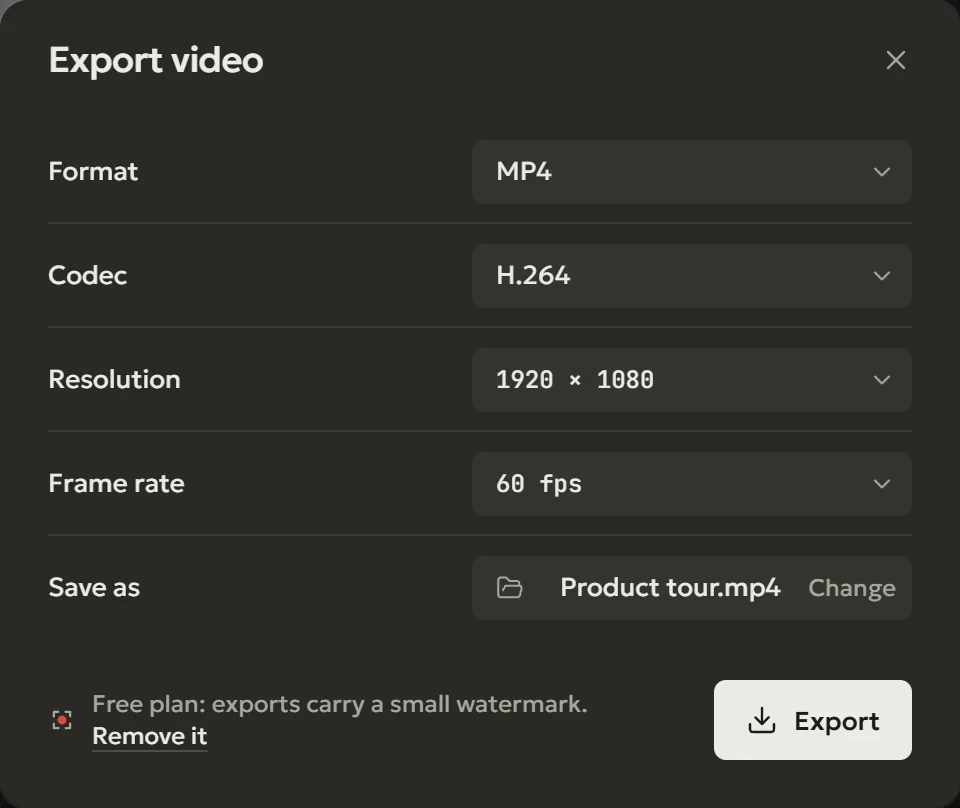
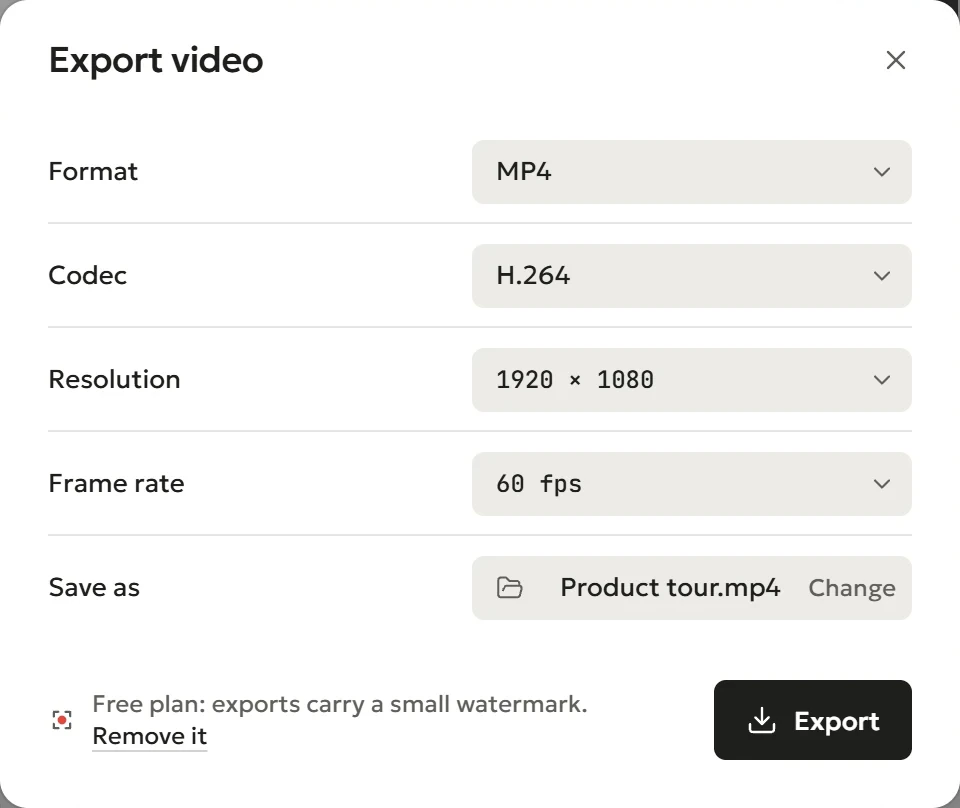
- Formats
- GIF, MP4, MOV and WebM.
- Codecs
- H.264, H.265, AV1, VP9 or ProRes, depending on the format.
- Resolution
- 720p to 2160p, or your own size.
- Frame rate
- 24, 30, 60 fps or custom.
How to make a GIF of your screen
Record
Choose a display or a single window and press record.
Shorten
Cut the parts you do not need and speed up the slow ones, up to 16×.
Point at it
Add zooms, text or arrows where the viewer should look.
Export
Choose GIF, then the resolution and frame rate.
Questions
Can I turn an existing video into a GIF?
Yes. Open an MP4, MOV, WebM, MKV, AVI, M4V or WMV file and export it as a GIF.
How do I keep the GIF small?
Keep it short, and choose a lower resolution and frame rate when you export. For long recordings a video format is much smaller than GIF.
Is GIF export free?
Yes. Free GIFs carry a small “Made with WhistleScreen” badge; Pro exports them without it.
More of WhistleScreen
Windows 10 (build 19041) or newer and Windows 11, 64-bit.